Decide a conflict
Two context items are in a conflict when an owner said they disagree, in the review or in the editor. The app never decides it by itself. Until someone decides it, agents give both and say that context disagrees: the Conflict line in Answer lines.
Find them
Every item in a conflict carries a Conflict chip in Context.
To see only those, pick Conflicts above the list, or In a conflict in Filter. It is the same list, with its search, sort and selection, showing only the items in a conflict. The number next to Conflicts says how many there are.
The chip, or Compare and decide in the row’s menu, opens the two side by side. When nothing disagrees, the list says No conflicts.
Compare
Compare and decide shows the two side by side: what each says, where it comes from (its domain, owners, check date, source and the line copied from it), and what agents would say with only that one.
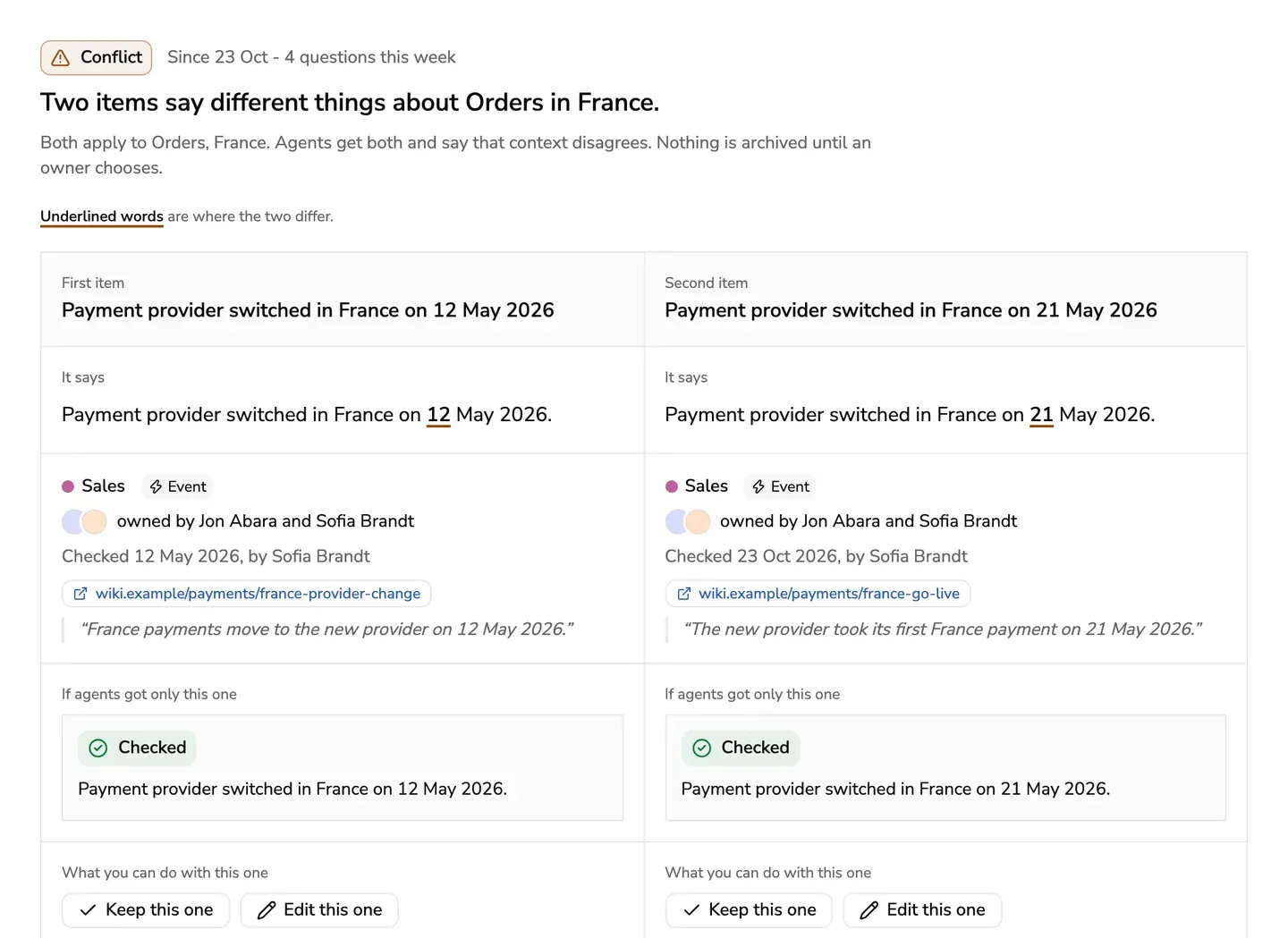
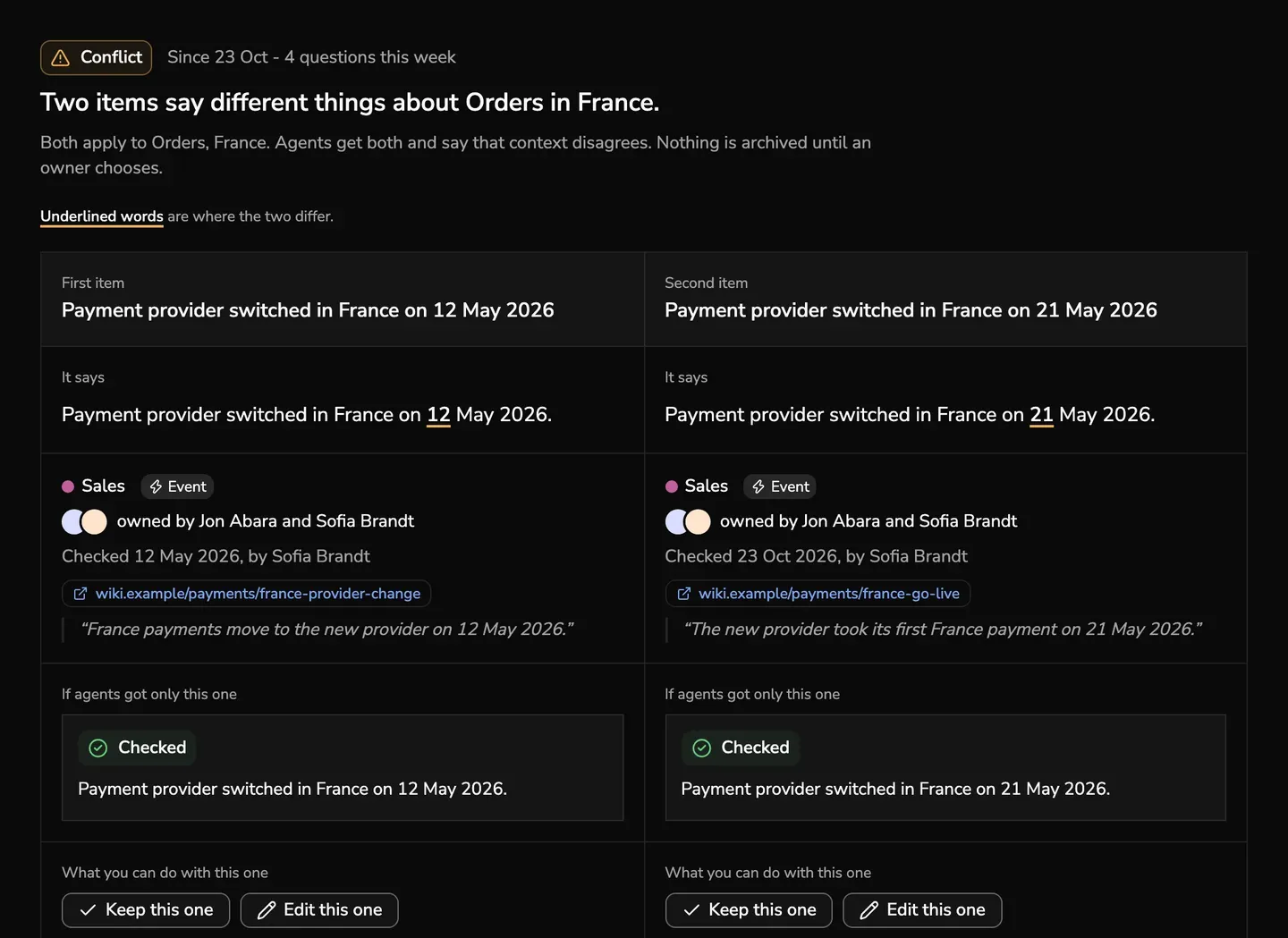
- When the two are written apart, the words both share are grey, so the words where they part stand out.
- When one is a near copy of the other, the words that differ are underlined.
- When neither helps, one line says so. Read both and the check dates.
Choose what to do
Each way asks why first, and can take a line from a source that decides it. Before you confirm, you see what agents will then say.
- Keep this one archives the other. It needs an owner of the other item, or an admin.
- Edit this one opens the editor with the other item beside it, to narrow it to where it applies. Saving it leaves the Conflict mark in place and takes you back to the conflict, at the Not a conflict step: give a reason to decide it, or cancel to leave the Conflict mark.
- Keep both records why. Agents keep saying Conflict, and the pair leaves the conflict lists until either item changes.
- Not a conflict removes the Conflict mark. It needs an owner of the item that holds it, or an admin. Agents then give both and say nothing about a difference.
- Ask the owner mentions them in a comment on the item, and it reaches their Inbox.
A button you can’t use says why. If you own only one of the two, you can suggest archiving the other, which goes to its owners with your reason. The other owners are told of every decision, it is on both items’ history, and you can undo it for a few seconds.
Keys
In the conflict view, Left and Right pick the item, 1 and 2 keep the first or the second, E edits, B keeps both, N is not a conflict, O asks the owner, and J and K move through the list. Command and Enter confirms the reason, and Esc closes it and keeps what you wrote. No key acts while you type.